

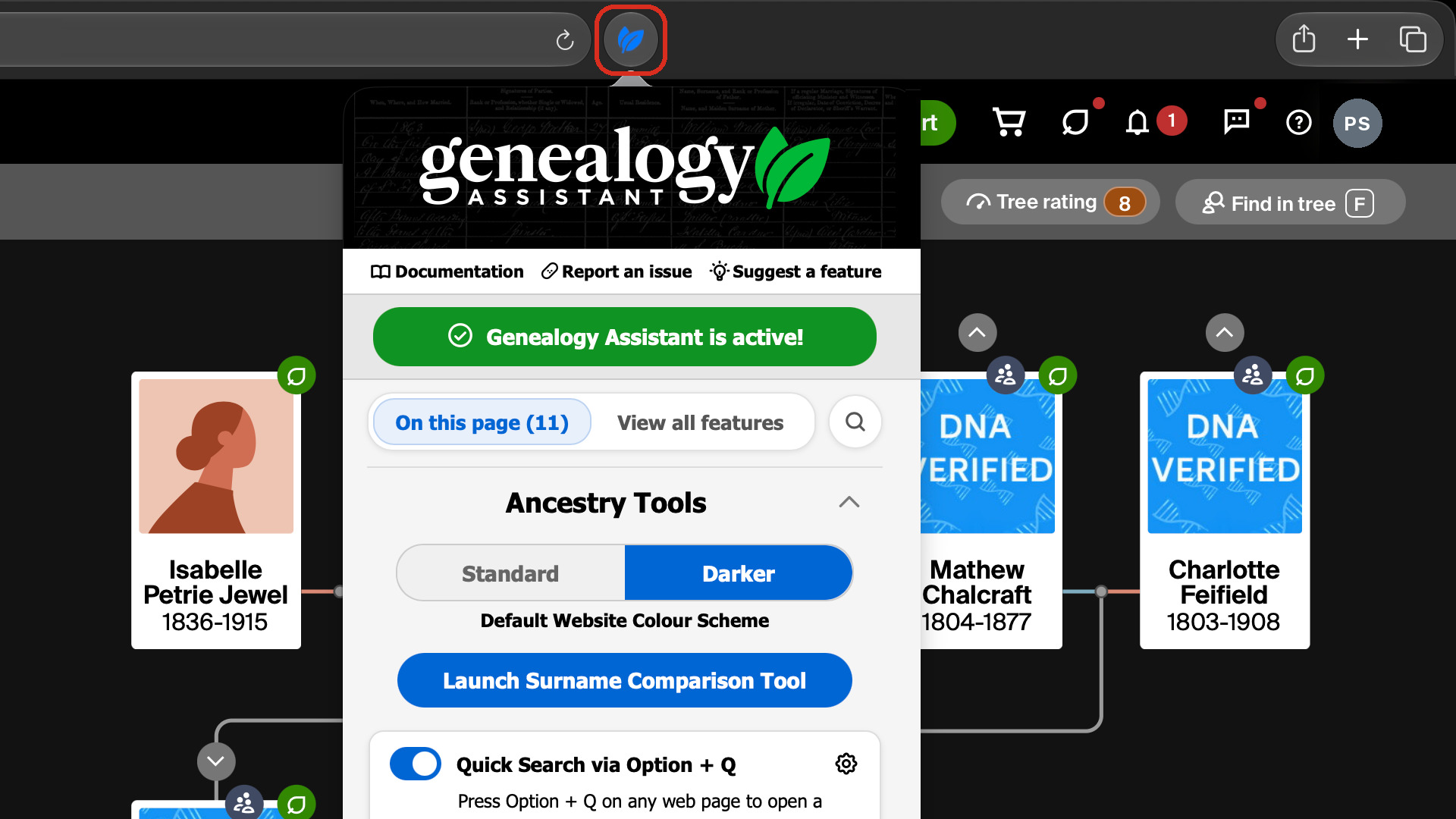
This guide installs Genealogy Assistant in Safari on a Mac. It then starts your free 30-day trial or logs you in to a plan you already have. Unlike the Chrome, Firefox and Edge versions, it comes as a small Mac app. The app adds the extension to Safari and keeps it up to date.
Before you start, check that your Mac has what the Safari version needs:
- A Mac running macOS 12 (Monterey) or newer.
- Safari 17 or newer.
- About five minutes.
How do I download and install the app?
- Click Download Genealogy Assistant for Safari. The .dmg file is saved to your downloads folder.
- Open the .dmg file. A window opens with the Genealogy Assistant icon and your Applications folder.
- Drag the Genealogy Assistant icon onto the Applications folder.
- Eject the disk image with the eject arrow beside it in the Finder sidebar.
How do I add Genealogy Assistant to Safari?
- Open your Applications folder and double-click Genealogy Assistant. If macOS asks whether you are sure you want to open it, click Open.
- In Safari, choose Settings from the Safari menu, or press
Command+,. - Click the Extensions tab.
- Find Genealogy Assistant in the list on the left and tick the checkbox beside its name.
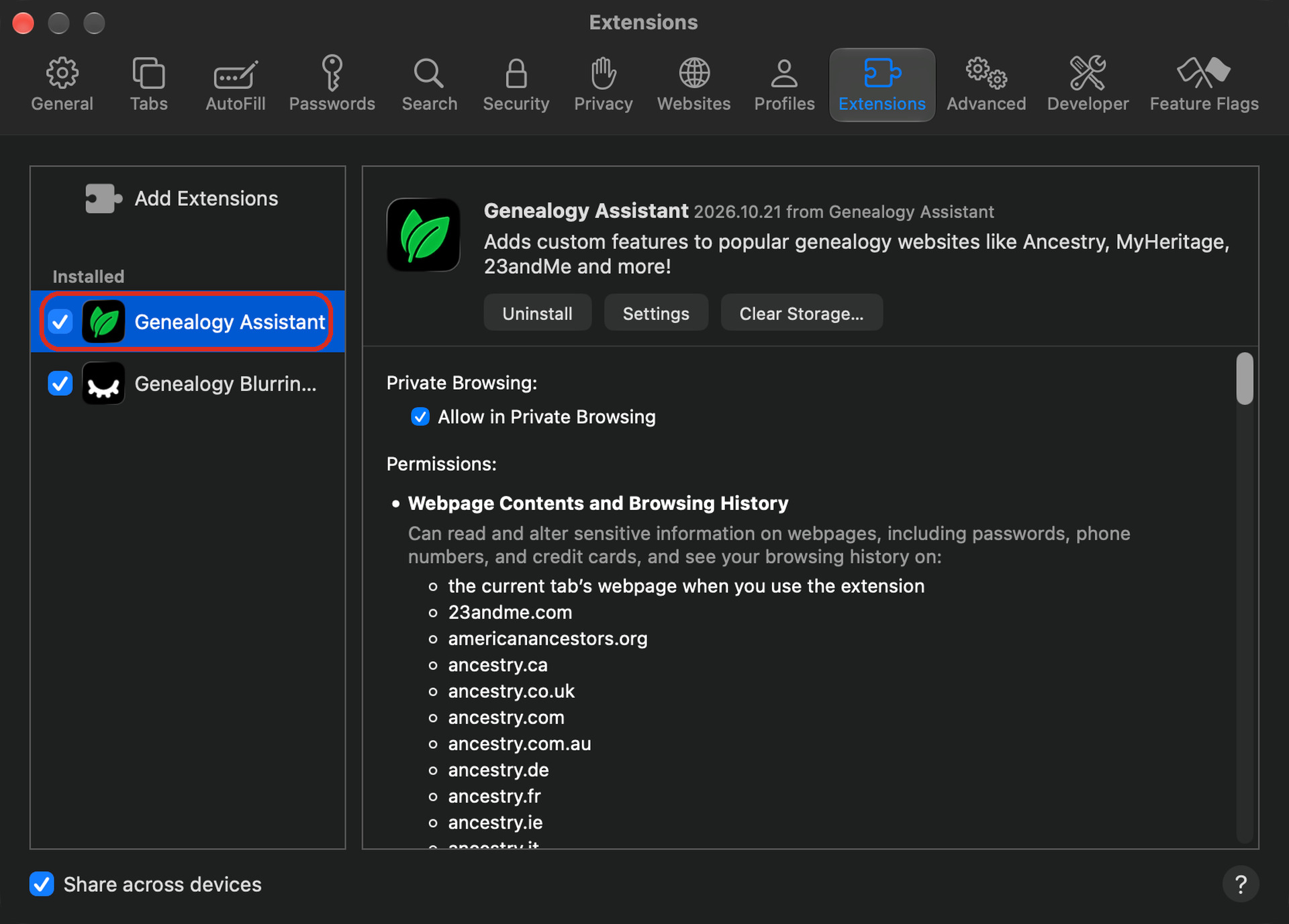
Opening the app once is what makes the extension appear in Safari. You can quit the app afterwards, because it does not need to keep running. Once the extension is on, a new tab opens the Genealogy Assistant page on genea.ca, with a video walkthrough of the features.
How do I let it work on genealogy websites?
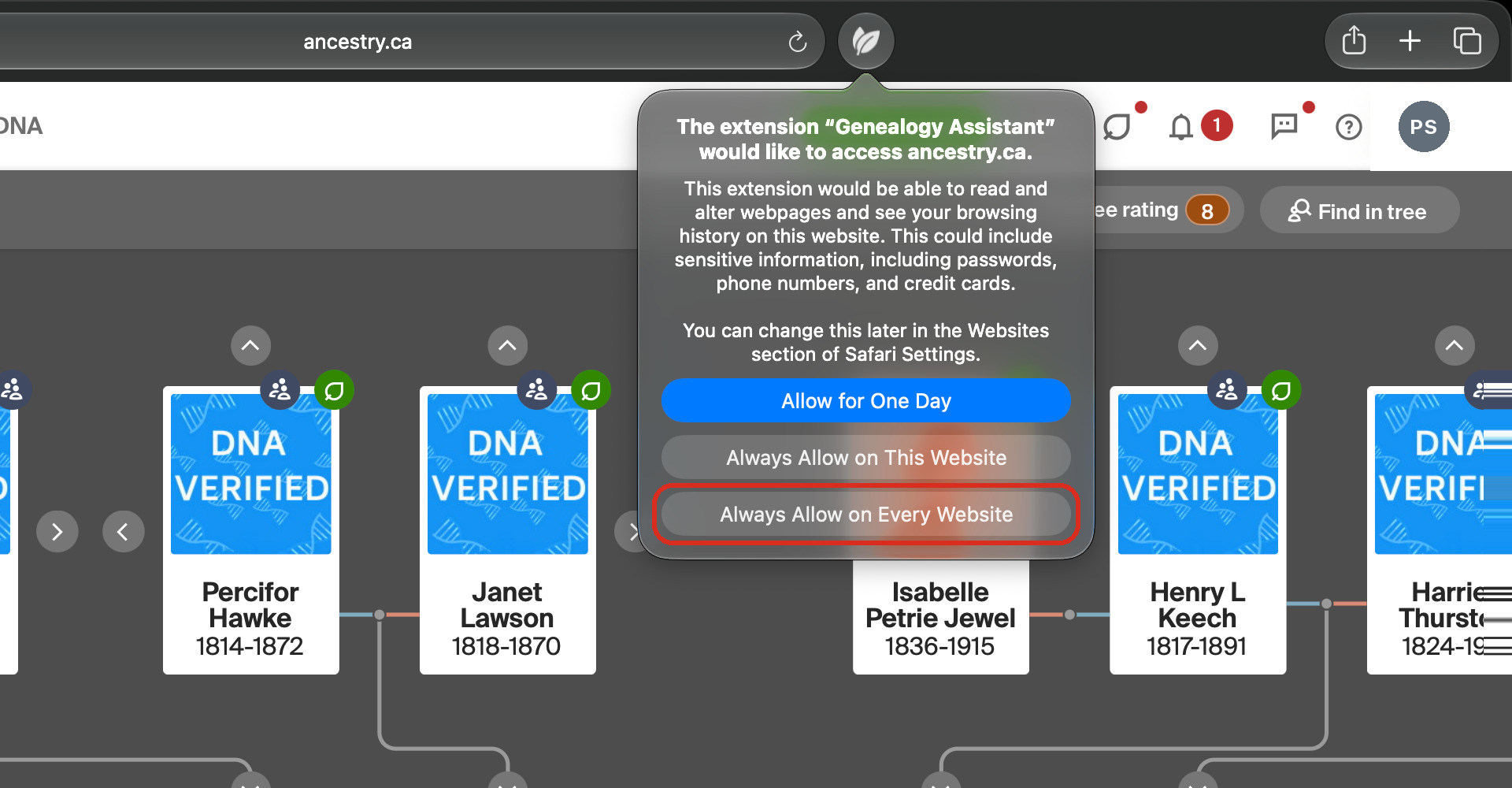
Safari asks which websites each extension may read. Without access, Genealogy Assistant stays on but does nothing on the page, because it cannot read it. The quickest way to give it access to every genealogy website is from the toolbar:
- Open a supported page, such as your family tree on Ancestry.
- Click the Genealogy Assistant button in the Safari toolbar.
- Choose Always Allow on Every Website. Every feature now works on every supported site without asking again.
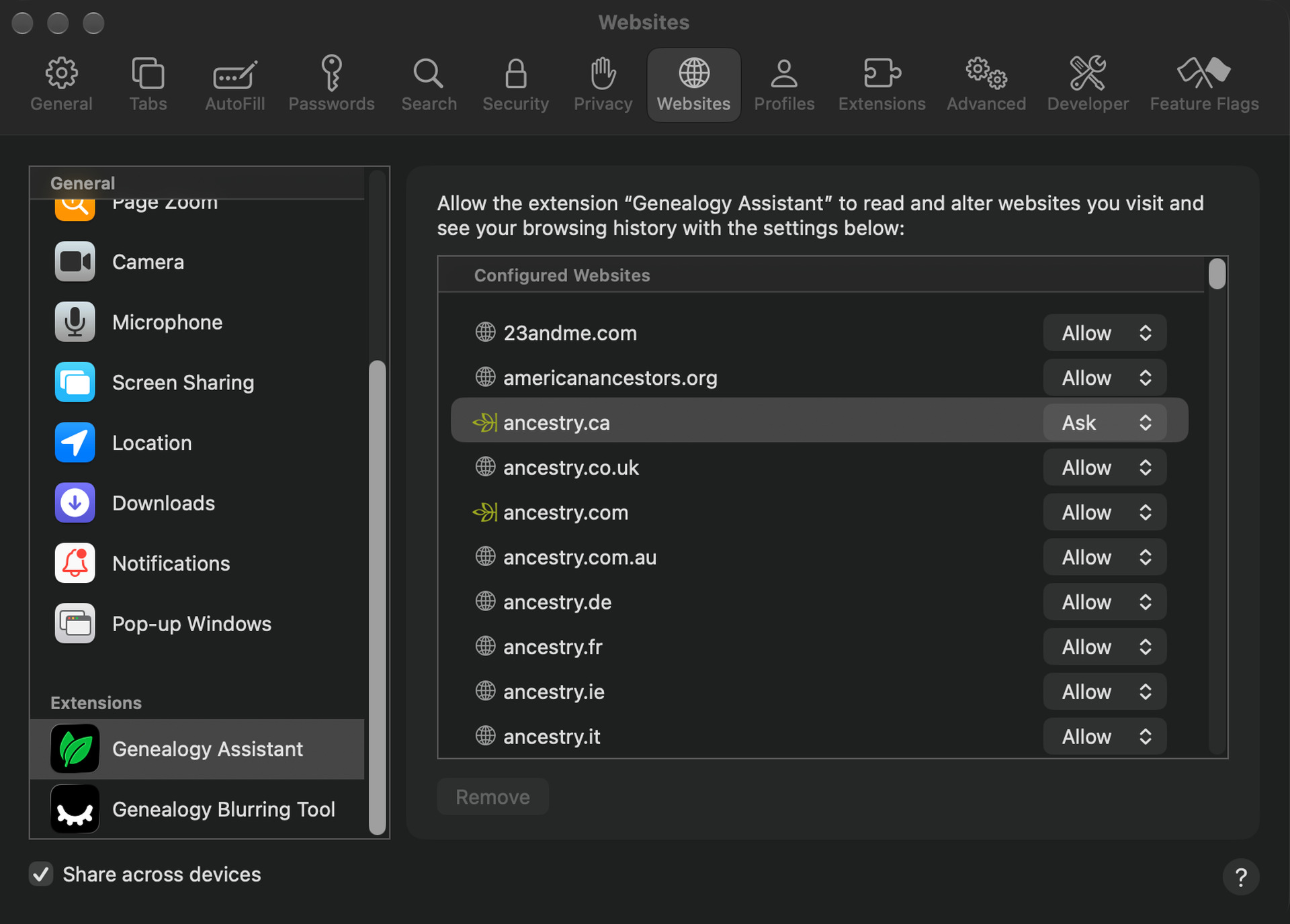
To set access one site at a time instead, open the Extensions tab in Safari’s settings and click Genealogy Assistant. Scroll to the end of its permissions and click Edit Websites….
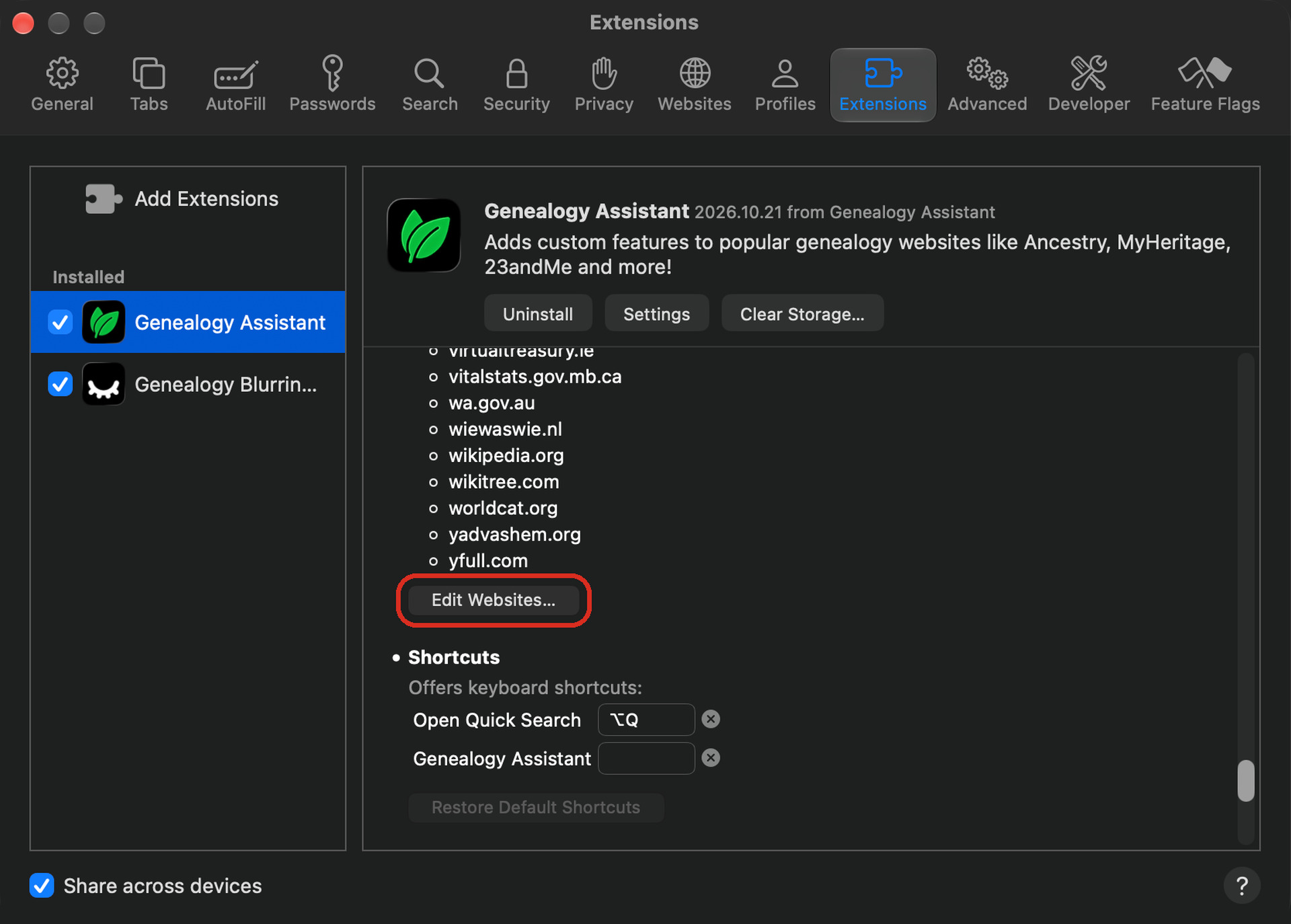
The Websites tab opens with Genealogy Assistant chosen and every genealogy site it works on listed. Set each site to Allow, Ask or Deny with the menu beside it. You can change these at any time, and a site set to Deny gets none of the features.
How do I start my trial or log in?
- Click the Genealogy Assistant button in the Safari toolbar. A window from ExtensionPay, our payment service, opens and asks for your email address.
- Do one of these:
- To start your free trial, type your email address and click Start Trial.
- If you have already bought a plan in any browser, click Already paid? Log in and type the email address you paid with.
- Open the email from Genealogy Assistant and click the confirmation link in it. If it has not arrived after a few minutes, look in your spam or junk folder.
- Click the Genealogy Assistant button again. The pop-up panel opens with every feature turned on, and its bottom line shows your trial’s days remaining or You are a premium user. Thank you for your support!
Reload any genealogy page that was already open and the tools appear. Your trial or plan belongs to your email address, so one plan covers Safari, Chrome, Firefox and Edge. If the toolbar button is missing, choose Customize Toolbar from the View menu and drag the Genealogy Assistant icon into the toolbar.
For a tour of what each feature does, watch the walkthrough on YouTube or read How to use Genealogy Assistant. Every feature also has its own page on genea.ca. To find its link, click View more under the feature’s description in the pop-up panel.
How does it update?
The Safari version updates itself. New releases install quietly in the background and take effect the next time you restart Safari, so there is nothing to reinstall. To check for an update yourself, open Genealogy Assistant from your Applications folder and click Check for Updates.
What if Genealogy Assistant is not in the Extensions list?
Open the app once from your Applications folder, then look at the Extensions tab in Safari’s settings again. Opening the app is what adds the extension to Safari. If it is still missing, quit Safari completely by choosing Quit Safari from the Safari menu, then open Safari again.
What if nothing appears on the page?
Give Genealogy Assistant access to the website, as described in How do I let it work on genealogy websites, then reload the page. If one feature is still missing, quit Safari completely and open it again. Check that the feature is turned on in the pop-up panel, and that your trial or plan is active.
What if macOS will not open the app?
The app is signed and notarized by Apple, so macOS should open it normally. Download it again with Safari, from the link in How do I download and install the app. Then check that your Mac runs macOS 12 (Monterey) or newer. Still stuck? Email us at [email protected].